
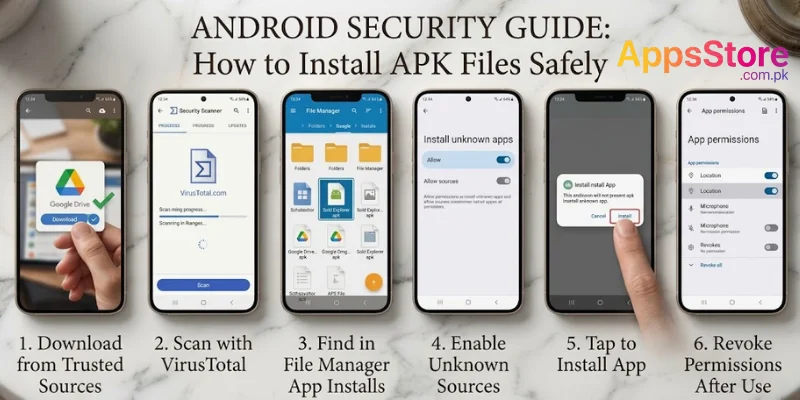
Android is famous for its open ecosystem, allowing users to customize their devices and install apps from sources other than the official Google Play Store. Whether you want to try an app that isn’t available in your region, roll back to an older version of a software update, or access early-beta features, installing an APK file directly is the way to go. However, with this freedom comes responsibility. Installing third-party APKs can expose your phone to security risks if you aren’t careful. This guide walks you through everything you need to know about APK files and how to install them safely on your Android device.
What Is an APK File?
APK stands for Android Package Kit. It is the standard file format used by the Android operating system to distribute and install mobile apps similar to how .exe files work on Windows computers or .dmg files work on macOS. An APK file contains all the necessary code, assets, resources, and manifest files required for an app to run on your phone. When you download an app from the Google Play Store, the store automatically downloads and installs the APK file in the background for you. When you obtain an APK manually, you are simply handling the installation process yourself.
Check the APK Source Before Installing
Before downloading any APK file, verifying where it comes from is your most crucial security step. Malicious actors frequently modify APK files to hide malware, spyware, or adware inside otherwise normal-looking applications.
- Always download files from trusted websites, official app pages, or well-known tech forums.
- Websites promising paid apps for free or games with unlimited coins often hide malware inside their files.
- Scan the downloaded file with a mobile antivirus app before opening it.
How to Install APK Files on Android
Installing an APK manually often referred to as sideloading is straightforward. Follow these steps to complete the process safely:
Download the APK
Open your mobile browser such as Chrome or Firefox and navigate to a trusted APK site. Find the app you want to install and tap the official Download APK button. Save the file to your device’s internal storage usually in the Downloads folder.
Open the Downloaded APK
Once the download finishes, open your web browser’s downloads menu or launch your phone’s default Files or File Manager app. Locate the apk file you just saved and tap on it.
Allow Installation From the Relevant Source
Starting with Android 8.0 Oreo, Android handles third-party app installations per app rather than through a global system wide setting:
- A system prompt will appear stating that your browser or file manager isn’t allowed to install unknown apps.
- Tap Settings on the prompt.
- Toggle on the switch next to Allow from this source.
- Press the Back button to return to the installation screen.
Review the Installation Screen
The package installer will now display a summary screen showing the app’s name, icon, and the permissions it requests to access on your phone. Read through these details to ensure the app is asking only for functions relevant to its intended use.
Complete the Installation
Tap the Install button at the bottom right corner of the screen. The system will process and extract the application files. Once completed, you will see a confirmation message. Tap Open to launch your new app or Done to finish.
Check App Permissions
Once the app is installed, pay close attention when you open it for the first time. Android will ask for runtime permissions such as camera access, location, microphone, or contacts.
Ask yourself if the requested permissions make sense. For example, a simple calculator app has no legitimate reason to access your location or contacts list.
You can manage or revoke permissions at any time by going to Settings, Apps, App Name, Permissions.
Keep Your Android Phone Updated
Keeping your Android operating system updated ensures that your device receives the latest security patches, bug fixes, and system defense updates such as Google Play Protect updates. Operating system updates close security vulnerabilities that malicious APK files might otherwise exploit.
What If the APK Files Does Not Install?
If you encounter an App Not Installed error during the process, it usually occurs due to one of the following common causes:
The file download was interrupted. Try downloading the APK file again.
The APK may require a newer Android version than your phone currently runs, or it was built for a different processor type.
You are trying to install an APK over an existing app with a mismatched cryptographic signature. Uninstall the existing version of the app first back up your data if needed and attempt the installation again.
If installing to or from an SD card, corrupt memory sectors can prevent package extraction.
Make Enough Storage Available
APK files are compressed archives. During the installation process, Android extracts all underlying files, requiring significantly more storage space than the initial download size of the APK file itself. If your phone runs low on available internal storage, the installation will fail or cause performance issues. Keep at least 1 GB of free storage space available before sideloading larger apps or games.
Do Not Trust Every “Download” Button
Many third-party APK websites host aggressive banner advertisements designed to look like legitimate system prompts or green “Download Now” buttons. Clicking these fake buttons can redirect you to unwanted advertising pages or trick you into downloading unwanted, malicious files. Always look closely at the URL, inspect the button formatting, and ensure you are clicking the actual download link for your intended file.
Is Installing APK Files Safe?
Sideloading APK files is an intentional feature built into Android by design. However, because these files bypass the rigorous safety checks performed by the Google Play Store, the safety of an APK relies entirely on the trust integrity of the source you choose. As long as you download files from vetted repositories, scan unknown downloads, and verify app permissions, sideloading APK files is safe.
If you are looking for safe and tested files, you can directly browse our dedicated sections:
- Explore popular applications in our Apps Category
- Find trending action and casual games in our Games Category
- Download useful mobile utility software from our Tools Category
Conclusion
Sideloading APK files gives you full control over your Android device, opening up access to geo-restricted content, software rollbacks, and independent software applications. By following the security guidelines covered in this guide sourcing files carefully, reviewing permissions, and keeping your system updated you can enjoy the flexibility of Android without compromising your device’s security.
Disclaimer
This article is provided for informational and educational purposes only. Sideloading third-party APK files carries inherent security risks. Always download files from sources you trust and ensure you comply with copyright laws and local regulations when accessing mobile software.
FAQs
1. Is sideloading APK files illegal?
No, downloading and installing APK files is completely legal. Sideloading is a standard feature provided by the Android OS. However, downloading pirated or copyrighted paid apps for free via APKs is illegal.
2. Will installing an APK file harm my phone?
An APK file itself is just a package. However, if an APK originates from an unverified or malicious source, it can contain malware or spyware that harms your device or steals personal data.
3. Can I update an app that I installed via an APK file?
Yes. If the app is also available on the Google Play Store and shares the same official developer signature, the Play Store can update it automatically. Otherwise, you will need to manually download and install updated APK versions as they become available.
4. How do I uninstall an app installed from an APK?
You can uninstall sideloaded apps the exact same way as standard apps: tap and hold the app icon on your home screen or app drawer, tap App Info, and select Uninstall.